
Complete Guide to Using the Wheel of Names
This wheel is dead simple to use. But knowing all the features helps you get the most out of it. Here’s everything you need to know.
Quick Start (30 Seconds)
Don’t want to read a whole guide? Here’s the fastest way:
- Type names in the box (one per line)
- Click the purple SPIN button
- See who got picked
Done. That’s the basic use.
Want to know more? Keep reading.
Adding Names to Your Wheel
Type Them Manually
Click in the text box on the right side. It says “Enter names here” at the top.
Type a name. Press Enter. Type another name. Press Enter. Keep going until you’ve added everyone.
Each name should be on its own line. Like this:

Maria
Gabriel
Carlos
Jasmine
The wheel automatically creates a colored section for each name. More names = more sections. The wheel adjusts its size to fit everything.
Paste From a List
Already have names in a text file or spreadsheet? Copy them. Click in the name box. Paste.
As long as each name is on its own line, the wheel recognizes them all instantly. Way faster than typing 50 names one by one.
Using Numbers or Items
You’re not limited to names. The wheel spins anything you type.
Want to pick a random number 1-100? Type numbers 1 through 100, one per line. Want to decide what to eat? Type restaurant names. What movie to watch? Type movie titles.
The wheel doesn’t care what you put on it. Names, tasks, prizes, options – it all works.
Spinning the Wheel
Two Ways to Spin

Option 1: Click the big purple circle in the center of the wheel. It says SPIN on it. Can’t miss it.
Option 2: Click the “Spin” button at the bottom below the wheel.
Both do exactly the same thing. Use whichever feels easier.
What Happens During a Spin
The wheel starts rotating fast. You’ll hear a clicking sound as it passes each section. The speed gradually decreases. As it slows, you can see which section it’s approaching. Eventually it stops completely.
Whatever section is under the pointer (that arrow on the right side) is your winner.
Using Keyboard Shortcuts
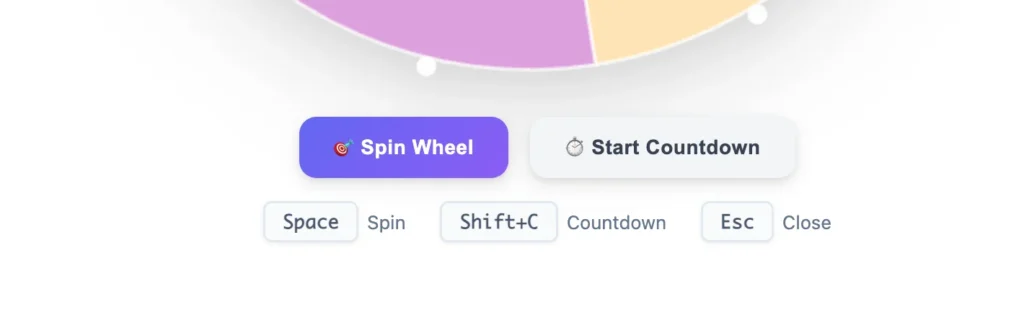
Don’t want to reach for the mouse? Press Spacebar. Instant spin.
When the winner popup appears, press Enter to close it. Press Escape to exit fullscreen mode.
These shortcuts make everything faster, especially if you’re doing multiple spins in a row.
Picking Multiple Winners

See the dropdown above the wheel? It says Pick 1 Winner by default.
Click it. Choose anywhere from 2 to 10 winners.
Now when you spin, the wheel will select multiple names at once. They appear in order – first name is your first winner, second is your second winner, and so on.
Super useful for:
- Raffles with first/second/third prizes
- Picking multiple team captains
- Selecting several volunteers at once
- Giveaways with multiple winners
Using the Countdown Timer
Want to build suspense before the spin?
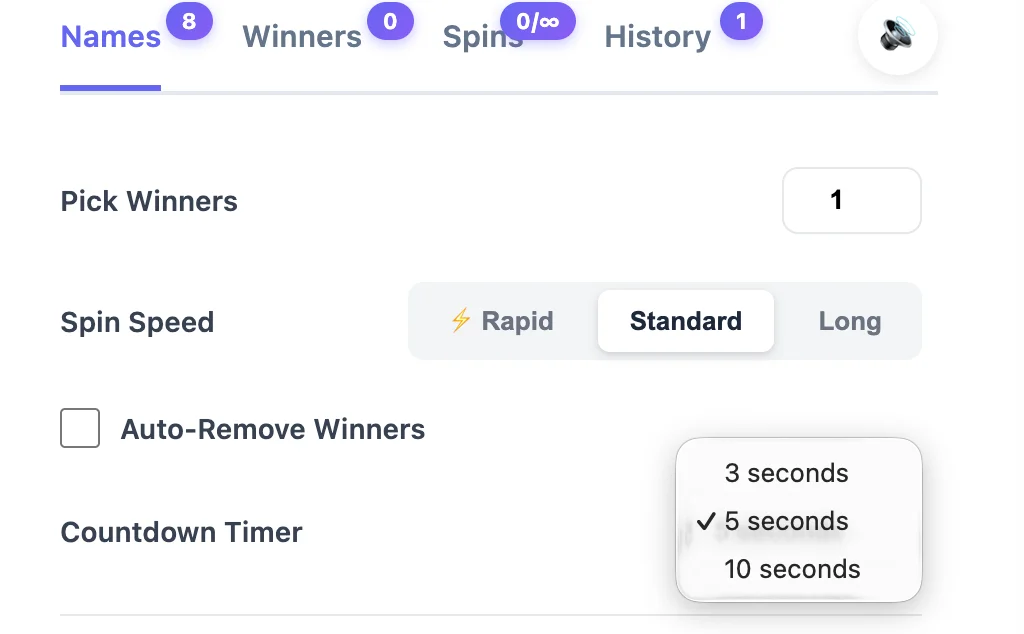
Click the “Countdown” button below the wheel. A slider appears where you can set the timer from 3 to 60 seconds.
Choose your time. Click Start Countdown.
The timer displays on screen counting down. 10… 9… 8… When it hits zero, the wheel automatically spins.
This is gold for:
- Birthday parties (builds excitement)
- Classroom activities (gets kids’ attention)
- Live events (creates drama)
- Livestream giveaways (keeps viewers watching)
Auto-Removing Winners

Check the box that says Auto-remove winner before you spin.
Now when someone gets picked, their name disappears from the wheel. Next spin won’t include them.
Why’s this useful?
- For teachers: Call on 45 students over the week. Everyone participates once before anyone goes twice. Fair rotation guaranteed.
- For families: Assign chores. Everyone does one chore before anyone gets two.
- For events: Make sure all participants get a chance before repeating winners.
When all names are removed, you’ll get a notification. Reset the wheel and start over.
Checking Spin History

Every spin gets recorded. The wheel tracks:
- Who won
- What time they won
- Which spin number it was
Your last 100 spins are saved automatically.
Where to find it? Look at the tabs on the right side panel. One says “History.” Click it. There’s your complete log.
Why does this matter?
Proof: Someone claims they never win? Check the history. A parent asks if their child participated? Check the history. Need to verify raffle results? Check the history.
You can clear the history anytime if you want to start fresh. But it keeps logging automatically as long as you use the wheel.
Customizing Colors

Want to change how the wheel looks?
Click the gear icon (Settings). Go to the “Colors” section.
You can:
- Pick a specific color for each entry
- Set one color for the entire wheel
- Use the default random colors
Some people color-code their entries. Teachers might make honor students blue, struggling students yellow. Event organizers might color-code different prize tiers. Families might give everyone their favorite color.
Sound Effects and Confetti
Settings also let you control audio and visual effects.
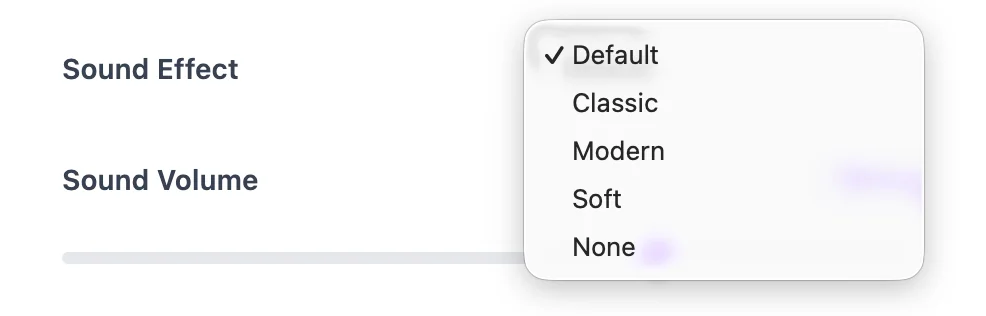
Sounds: Turn the clicking sound on or off. Adjust the volume (low/medium/high). Some situations need quiet (libraries, formal events). Others benefit from sound (classrooms, parties).
Confetti: When someone wins, colorful confetti bursts across the screen. Kids love it. Adults appreciate it. Makes winning feel special. Don’t like it? Turn it off in settings.
Fullscreen Mode

Click the fullscreen button (looks like a square with arrows pointing outward).
The wheel expands to fill your entire screen. All controls and panels disappear. Just the wheel.
Perfect for:
- Projecting to a class
- Displaying on a TV at events
- Screen sharing on video calls
- Focusing everyone’s attention on just the wheel
Press Escape or click the fullscreen button again to exit.
Sorting and Shuffling
Sort Alphabetically: Click “Sort Names” and your list reorganizes A to Z. Makes it easy to spot if anyone’s missing. Good for verification.
Shuffle: Click “Shuffle Names” and the order scrambles randomly. Adds another layer of randomization before you spin. Some people do this every time for extra fairness proof.
Saving and Sharing
Export Winners
After a spin, click Export Winners. Downloads an image showing who won and when. Perfect for:
- Posting to social media
- Printing for bulletin boards
- Including in reports or newsletters
- Keeping permanent records
Share Button
Click Share Winners and your device’s share menu opens. On phones, you’ll see Messenger, Viber, email, SMS – whatever apps you have. On computers, it copies the winners to your clipboard.
Quick way to send results to others.
Download Name List
Click Download Names and you get a .txt file with all your entries. This is your backup.
Useful for:
- Saving class rosters
- Sharing with co-workers
- Keeping multiple lists stored safely
- Switching between different groups
Working Offline
After you load the page once, it works without internet.
Your names save in your browser. The wheel spins on your device. No connection needed.
Perfect for:
- Areas with bad signal
- Data-saving mode
- Locations with no WiFi
- When the internet dies mid-event
Close the browser and come back later? Everything’s still there. Your names, settings, history – all saved locally.
Important: If you clear your browser cache or browsing data, you’ll lose your saved names. That’s why downloading backups is smart.
Mobile Use
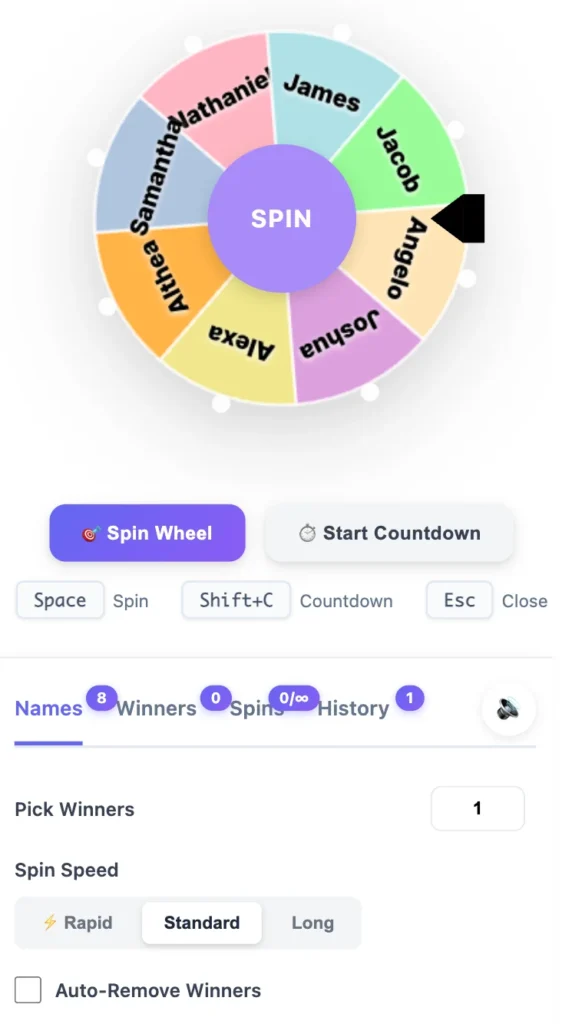
This wheel works great on phones. The entire interface adjusts to fit small screens.
iPhone users: Use Safari browser for best results. Can add to home screen for app-like experience.
Android users: Chrome works perfectly. Can install to home screen as a web app.
Want to project from your phone? Use screen mirroring to connect to a TV or projector. Now everyone can watch on the big screen while you control it from your phone.
Tips for Different Use Cases
For Teachers
Load your roster at the start of the school year. Check auto-remove winner. Spin throughout the week. Everyone participates fairly. Reset on Monday.
Use fullscreen when projecting. Hides the name list, keeps focus on the spinning wheel.
For Content Creators
Load subscriber names before your livestream. Go fullscreen. Share your screen. Spin live so viewers watch it happen in real time.
Export the winner list after. Post it as proof your giveaway was fair.
For Events
Arrive early. Load participant names before people show up. Test the wheel. Check sound works. Practice going fullscreen.
During the event, just click spin. No fumbling with papers or boxes.
For Families
Keep a standard list of household members saved. Load it whenever you need to assign chores or make decisions. Auto-remove keeps it fair over time.
Troubleshooting
- Wheel won’t spin: Refresh the page. If that doesn’t work, clear your browser cache and reload.
- Names disappeared: Did you clear browsing data? That wipes local storage. Always download backups.
- Same name wins repeatedly: That’s normal randomness. Each spin is independent. Use auto-remove if you don’t want repeats.
- Mobile performance issues: Close other browser tabs. Free up phone memory. Update your browser to the latest version.
- Can’t add more names: Is your browser maxing out local storage? Download your current list, clear it, add new names.
Still Have Questions?
Check our FAQ page for more answers.
Or contact us – we’re happy to help.
Try the Wheel Now | See Use Cases | View Features