
Wheel of Names – Online Random Name Picker
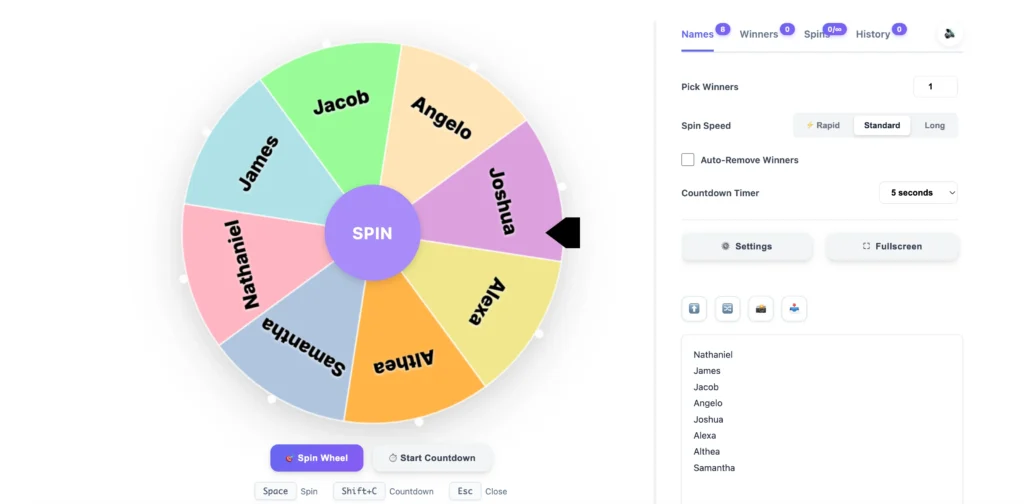
What Is Wheel of Names?
It’s a free online tool that picks random names for you. Think of those spinning wheels you see on game shows – that’s basically it, but on your phone or computer screen.
Here’s how it works: You type in names (or anything really – tasks, prizes, restaurant choices, whatever you need to pick from). Each name gets its own colored section on the wheel. Hit the spin button and the wheel starts rotating. Fast at first, then it slows down. Eventually it stops on one section. That’s your winner. That’s who got picked.
The whole thing happens right in your browser. You don’t download an app. You don’t sign up for anything. Just visit the site, add your names, and spin.
Why do people use this instead of just picking randomly themselves? Because everyone can see it. When you spin the wheel of names online, it’s visual. People watch it turn. They see where it stops. There’s no did you really pick fairly? doubt. Plus it’s fast – way faster than writing names on paper slips and drawing from a hat. And honestly? It’s more fun. There’s something exciting about watching that wheel spin, especially when your name is on it.
Why Use a Random Name Wheel?
Because picking randomly by yourself creates problems. Someone always thinks you’re being unfair. Someone always complains. Why did you pick him again? You never pick me! That’s not random!
A spinning wheel solves this. Everyone watches it spin. Everyone sees where it lands. No one can argue with what they saw happen right in front of them. The wheel doesn’t play favorites. It doesn’t remember who got picked last time. It just spins and stops.
It also saves you time. Imagine you’ve got 50 people and you need to pick 5 winners. Writing all those names on paper? Finding a container? Mixing them up? Drawing one by one? That takes forever. With this wheel, you type the names once, set it to pick 5 winners, click spin. Done in 30 seconds.
Then there’s the fun factor. Let’s be real – watching a wheel spin is way more exciting than watching someone reach into a box. Kids get excited. Adults lean in to watch. There’s actual suspense as it slows down. Is it going to be me? Is it going to be me? That moment when it finally stops? People react. They cheer, they laugh, they groan. It turns a boring selection process into a mini-event.
Plus, it removes decision fatigue. You make hundreds of tiny decisions every day. Who goes first? Who presents next? What game do we play? Which restaurant tonight? These small choices add up and drain your mental energy. The wheel takes that off your plate. You don’t decide – the wheel decides. One less thing to think about.
For teachers handling 50+ students, this is huge. You can’t remember who you called on yesterday. You can’t track who hasn’t participated yet. The wheel can handle that with the auto-remove feature. For offices doing raffles, nobody can accuse you of rigging it. For families fighting over chores, the wheel settles the argument without anyone getting mad at you.
That’s why people use a random name wheel. It’s fair, it’s fast, it’s visible, and it takes the pressure off you.
How Does This Wheel Work?
The mechanics are simple. You add names to the list. Each name becomes a slice of the wheel – like cutting a pizza into pieces. The more names you add, the more slices the wheel gets divided into. Each slice gets a different color so you can tell them apart.
When you click the spin button, the wheel starts rotating. It uses actual randomization (not fake spinning) to pick the result. The wheel doesn’t just land wherever it feels like – there’s real math happening behind the scenes to make sure every name has an equal shot at getting picked.
Here’s what happens during a spin: The wheel accelerates fast, then gradually slows down. As it slows, you’ll see it clicking past each section. The clicking sound and the pointer arrow on the side help you follow along. When it finally stops, the section under the pointer is your winner. A popup appears showing the selected name clearly.
The wheel uses something called cryptographic randomization. Don’t worry about the technical term – basically it means the same security-level randomness that banks use for passwords. It’s not kinda random or mostly random. It’s properly random. The kind you can trust for important selections.
What makes this different from just typing names into a list and having a computer spit out a random one? The visibility. People see the wheel spinning. They watch it slow down. They see exactly where it stops. That visual element builds trust in a way a text-based random picker never can.
You can spin as many times as you want. Each spin is completely independent – previous results don’t affect future ones. So yes, the same name can win twice in a row. That’s how true randomness works. If you don’t want repeats, just check the auto-remove winner box and picked names disappear from the next spin.
The wheel saves everything automatically. Your names, your settings, your spin history – it all stays in your browser. Close the tab and come back tomorrow? Everything’s still there. No account needed, no passwords to remember. It just works.
How to Use Wheel of Names (Step-by-Step)
Getting started takes about 10 seconds. When you load the page, you’ll see the wheel in the center and a text box on the right side labeled Enter names here.
Step 1: Add Your Names

Click inside that text box and start typing. Put each name on a new line – just press Enter after each one. So if you’re picking from Gabriel, Maria, and Carlos, you’d type Gabriel, hit Enter, type Maria, hit Enter, type Carlos. That’s it. You can add as many names as you need. Got 60 students? Type all 60 names. The wheel adjusts automatically to fit however many entries you add.
Don’t want to type everything manually? You can paste from a text file or spreadsheet. Just copy your list of names, click in the box, and paste. As long as each name is on its own line, the wheel will recognize them all. This is huge if you’re adding a whole class roster or a long list of raffle entries.
Step 2: Spin the Wheel

Once your names are loaded, you’ve got two ways to spin. You can click the big purple circle in the middle of the wheel – it says SPIN on it. Or you can click the Spin button at the bottom below the wheel. Either one does the same thing.
When you click it, the wheel immediately starts spinning. You’ll hear a clicking sound as it rotates past each section. The wheel spins fast at first, then gradually slows down. Everyone can watch it decelerate and see exactly where it’s going to stop.
Step 3: See Your Winner

The wheel stops and a popup appears in the middle of your screen. It shows the name that got picked in big letters. There’s also confetti animation (if you haven’t turned that off) to make it feel more celebratory.
The popup gives you options: Spin Again if you want to pick another name right away, or just close it by clicking the X or clicking outside the popup. The winner also gets added to your winners list on the right side of the screen, along with the time it was picked.
Optional Features While Spinning
Before you spin, you’ll see some checkboxes and options at the top:
Want to pick multiple winners at once? There’s a dropdown that says Pick 1 Winner – click it and you can change it to pick 2, 3, 4, or even up to 10 winners in one spin. Perfect when you need multiple team leaders or several raffle prizes.
See the Auto-remove winner checkbox? Check that if you want picked names to disappear from the next spin. This is perfect for classrooms – once Gabriel gets called on, he won’t get picked again until everyone else has had a turn. When all names are gone, you’ll get a notification and can reset the wheel to start over.
Want to build suspense? Use the countdown timer. There’s a Countdown button that lets you set a timer from 3 to 60 seconds. Click start and everyone watches the countdown before the wheel spins. Kids especially love this – the anticipation really gets them excited about who’s going to be picked.
That’s all there is to it. Add names, click spin, get your result. Everything else is optional depending on what you need.
Popular Uses of the Name Wheel
People use this wheel for all kinds of random selection. Here are the most common ways it gets used every day:
In Classrooms & Online Lessons
Teachers use this to pick students fairly. When you’ve got 40+ kids and need someone to answer a question, the wheel removes any accusations of favoritism. Students see their names spinning and accept whoever gets picked. No more Teacher, why always me? complaints.
Works great for forming random groups too. Spin once to pick team captains, spin again to assign everyone else. Takes two minutes and nobody argues about who they got paired with. The wheel decided, so that’s that.
Online teachers love this for virtual classes. Share your screen on Zoom or Google Meet and everyone watches the wheel spin together. Keeps remote students engaged because they never know when their name might come up. Same excitement as in-person, just through a screen.
Also useful for picking who reads next during class readings, who presents first on project day, or who gets to choose the brain break activity. Any time you need random selection in a classroom, this wheel handles it.
Content Creators & Giveaways
If you’re running a YouTube channel, TikTok account, or Facebook page, this wheel makes giveaways way easier. Copy all your commenters’ names, paste them in the wheel, and spin it live on stream. Your viewers watch the selection happen in real time. No one can claim you rigged it or picked your friends.
Streamers on Facebook Gaming or YouTube use this for subscriber perks. Every 100 subscribers, I’ll spin the wheel and give away a game code! Then they show the wheel on screen with all the recent subscribers’ names loaded. The winner gets picked right there while everyone’s watching.
Works for picking which game to play next too. Viewers suggest games in chat, you add them to the wheel, spin, and whatever it lands on is what you’ll play. Gives your audience some control while keeping it random and fair.
Filipino content creators especially like this because you can share the result instantly via Messenger or post a screenshot to your Facebook group. Your winners see it, your community sees it, everyone knows it was random.
Company Events & Raffles
Office Christmas parties always need raffle drawings. Instead of pulling names from a box, project this wheel on the screen. Everyone sees their name on there. Everyone watches it spin. First prize, second prize, third prize – spin three times. Way more exciting than someone just reading names off paper slips.
Team building events use this for forming random groups. You’ve got 80 employees and need to split them into 10 teams? Add everyone’s names, set it to pick 8 winners (team members), spin. Repeat for each team. Done in five minutes.
Also great for daily standups when you need to decide who presents first. Nobody wants to go first, right? Let the wheel pick. Removes that awkward who’s starting today? moment. Some companies even use it for assigning tasks in meetings – spin to see who takes the action item.
Trade shows and promotional events? Load it with booth visitors’ names for hourly prizes. Makes your booth more interactive and fun. People stick around to watch the drawing happen.
Family & Home Decisions
Sino ang magluluto ngayon? (Who’s cooking tonight?) – this is probably the most common family use. Everyone in the household goes on the wheel. Spin. That person cooks. No arguing, no excuses. The wheel chose.
Chore assignments work the same way. Who cleans the bathroom? Who takes out the trash? Who does dishes? Spin the wheel. Fair is fair. Kids can’t complain it’s always them because the wheel proves it’s random.
Decision-making gets easier too. Can’t agree on which movie to watch? Put all the suggestions on the wheel and spin. Where should we eat tonight? Add the restaurant options and let the wheel decide. Going on vacation but can’t pick between three destinations? Wheel it.
Parents use this for kids’ game time too – whose turn is it on the PlayStation, who gets first pick at the toy, who sits in the front seat today. Removes all the sibling fighting. The wheel is neutral, doesn’t play favorites, and what it says goes.
Some families even use it for fun weekend activities. What should we do this Saturday? Add options like beach trip, movie at home, visit lola, go to the mall, stay home and relax. Spin and whatever it lands on becomes the plan. Takes the pressure off trying to make everyone happy – the wheel made the choice for you.
How Filipino Teachers Use This Tool

Filipino classrooms have unique challenges that make this wheel especially useful. Here’s how teachers across the country are using it every day:
Handling Large Classes (40-60 Students)
When you’ve got 55 students crammed into one classroom, keeping track of who participated and who hasn’t is nearly impossible. Your brain can’t remember who you called on yesterday or who’s been quiet all week. This wheel fixes that problem.
Teacher Rosa from Quezon City loads all 58 of her Grade 4 students into the wheel at the start of the school year. Every morning during recitation, she spins. The wheel picks randomly. She checks the auto-remove winner box, so once Gabriel gets called, he’s out of the rotation until everyone else has had their turn. After all 58 students have participated, she resets the wheel and starts over.
This solves two problems at once. First, no student can hide anymore. Those quiet kids in the back who never raise their hands? They know they might get picked, so they start preparing answers. Second, no favoritism accusations. Students used to complain Ma’am, bakit si Althea lagi? Now they can’t – they watched the wheel pick randomly.
The wheel handles large lists without lagging. Some teachers have tested it with 65+ names and it still spins smoothly. Other random pickers start freezing around 30-40 entries, but this one keeps working. That matters when Philippine class sizes regularly hit 50+ students per room.
Daily Classroom Applications
Beyond just calling on students, teachers are getting creative with this wheel. Teacher Mario in Cebu uses it for group formation. He needs to split 48 students into 8 groups for science experiments. Instead of letting friends cluster together (which always leads to off-task behavior), he spins the wheel eight times to pick group leaders first. Then he spins to assign everyone else randomly. Zero complaints. The groups are mixed, students work with people they normally wouldn’t, and nobody can argue about the assignments.
For Catch-Up Fridays, Teacher Ana lets the wheel pick activities. She loaded Filipino games – Tumbang Preso, Patintero, Chinese Garter, Dodgeball – and every Friday the students spin to see what they’re playing. They’re more excited about the activity because they got to choose it, even though it was random.
Classroom jobs rotate fairly too. Who’s the line leader? Who erases the board? Who waters the plants? Spin the wheel every Monday. Students who got picked last week are already removed, so everyone cycles through eventually. No more Ma’am, I never get to be line leader complaints.
Reading round-robin also works better with the wheel. Teacher Jun displays it on the projector during English class. As they read a story, he spins to pick who reads the next paragraph. Students follow along more carefully because anyone might get picked next. The suspense keeps them engaged.
Mobile & Offline Access
Most Filipino teachers don’t have personal laptops. They use their phones. This wheel works perfectly on mobile – the entire interface adjusts to phone screens. You can type names with your phone keyboard, spin with your thumb, and show results to the class.
Teacher Carla from Davao teaches morning shift at one school and afternoon shift at another. She loads her class rosters on her phone during her commute. When school WiFi dies (which happens often), it doesn’t matter – the wheel works offline after the first load. Her names are saved in her phone’s browser. She just opens it and spins, internet or not.
For teachers who want to project to the class, screen mirroring works great. Connect your phone to the classroom TV using a cheap HDMI adapter or wireless casting. Now the whole class sees the wheel spinning on the big screen. No laptop needed.
The mobile-first design also means it doesn’t waste your prepaid load. The page loads fast, under 2MB. No heavy videos, no unnecessary images eating up your data. This matters when you’re using personal mobile data because the school WiFi is down again.
Easy Sharing with Messenger
After spinning, teachers often need to share results with parents, co-teachers, or school coordinators. The share button makes this instant. Click it and your phone’s share menu pops up – Messenger, Viber, SMS, email, whatever apps you’ve got installed.
Teacher Liza sends her daily participation record to the parents’ Messenger group. Parents see who got called on that day. No more Why wasn’t my child called on this week? questions – the records show everyone’s getting their turn.
Co-teachers handling the same students share their wheels with each other. Teacher Paolo sends his student roster to Teacher Grace who teaches the same class for Filipino subject. She imports it and doesn’t have to retype 52 names.
Some teachers screenshot the wheel with all their students’ names visible and post it to their class Facebook page at the start of the year. These are our Grade 6A students – everyone will get picked fairly throughout the year! The transparency builds trust with parents right from day one.
The export feature lets you download winners as an image too. Perfect for posting to your class bulletin board or including in your weekly class newsletter. This week’s classroom helpers were… and there’s the screenshot showing the wheel picked them.
Customize the Wheel Your Way

The wheel works perfectly out of the box, but you can adjust it to fit exactly what you need. Here are the settings you can change:
Pick 1 to 10 Winners at Once
Right above the wheel, you’ll see a dropdown that says Pick 1 Winner by default. Click it and you can change it to pick 2, 3, 4, or up to 10 winners in a single spin.
Why’s this useful? Say you’re running a raffle with first, second, and third prizes. Set it to pick 3 winners. Click spin once. The wheel stops and shows all three winners in order. First name that appears is your first prize, second is second prize, third is third prize. Done. No need to spin three separate times and risk people thinking you’re manipulating results between spins.
Teachers use this for picking multiple group leaders at once. Need 5 team captains from a class of 50? Set it to pick 5, spin, and you’ve got all your captains instantly. Content creators picking multiple giveaway winners? Same thing – one spin, multiple winners, everyone sees them all at once.
The winners show up in a list on your screen with the exact time each was selected. Clean, clear, no confusion about who won what.
Countdown Timer
Want to build suspense? Click the Countdown button below the wheel. You can set a timer anywhere from 3 to 60 seconds.
Here’s what happens: The countdown displays on screen – 10… 9… 8… People lean in. Kids get excited. Everyone’s watching. 3… 2… 1… Then the wheel spins.
This turns a simple random selection into an event. Birthday parties love this – the countdown before revealing who won the prize gets everyone’s attention. Classrooms use it to build excitement before picking who presents next. Office raffles feel more professional with a countdown before the big spin.
You don’t have to use it every time. It’s optional. But when you want that extra bit of drama, it’s there. Set it to 5 seconds for a quick build-up or 30 seconds if you really want to drag out the anticipation.
Auto-Remove Winners
See that checkbox that says Auto-remove winner? Check it before you spin.
Now when someone gets picked, their name disappears from the wheel automatically. Next spin won’t include them. This is perfect when you need to make sure everyone gets a turn before anyone goes twice.
Teachers use this constantly. In a class of 45 students, check this box at the start of the week. Every day you spin for who answers questions. Once a student gets called, they’re out of rotation. By Friday, you’ve called on everyone at least once. Reset the wheel on Monday and start fresh.
Families use it for chores. Everyone in the house goes on the wheel. Spin for who does dishes tonight – that person’s name is removed. Tomorrow spin again from the remaining names. Everyone cycles through before anyone has to go twice. Fair rotation guaranteed.
When all names are removed, you’ll get a notification letting you know everyone’s been picked. Click the reset button and all names come back for the next round.
Spin History Tracker
Every single spin gets recorded automatically. The wheel keeps track of your last 100 spins with three pieces of info: who won, what time they won, and which spin number it was.
Why does this matter? Proof. A parent asks Has my child been called on this week? Check the history. Yes, Maria was picked on Tuesday at 10:15 AM, spin #34. Someone claims they never win your office raffles? Pull up the history. You won three months ago on July 12th, spin #89.
The history is also useful for your own tracking. Teacher checking who participated in discussions this month? Scroll through the history. Event organizer verifying raffle results? It’s all logged. Content creator proving your giveaway was random? Screenshot the history showing all the spins.
You can clear the history anytime if you want to start fresh. But it keeps running automatically as long as you’re using the wheel, no extra work required.
Export & Share
After a spin, you’ve got options for saving or sharing the result. Click Export Winners and it downloads an image of your winners list. This is perfect for posting to social media, printing for a bulletin board, or including in reports.
The Share Winners button opens your device’s share menu. On phones, this brings up Messenger, Viber, SMS, email – whatever sharing apps you’ve got. On computers, it copies the winners list to your clipboard so you can paste it anywhere.
You can also download your entire name list as a text file. Click Download Names and you get a .txt file with all your entries. Useful for backing up your class roster or sharing it with a co-worker who needs the same list.
Screenshots work too. Just use your phone or computer’s screenshot function to capture the wheel with results showing. Some teachers prefer this because they can show the full wheel with everyone’s names visible plus the winner highlighted.
Fullscreen Mode
Click the fullscreen button (looks like a square with arrows) and the wheel expands to fill your entire screen. All the buttons, settings, and side panels disappear. Just the wheel.
This is essential when you’re projecting to a group. Connect to a TV or projector, go fullscreen, and everyone in the room can see clearly. The names are huge. The spinning is dramatic. Nothing distracts from the main event.
Teachers use this when they want students to focus on just the wheel without seeing all the names listed on the side. Keeps the suspense going – they know their name’s on there somewhere but can’t scan the list. They have to watch the wheel.
Press Escape on your keyboard or click the fullscreen button again to exit. The wheel returns to normal size with all your controls back.
Custom Colors & Sounds
Each section of the wheel gets a random color by default. Want to change them? Click on Settings (the gear icon) and go to the colors section. You can pick specific colors for each entry or set one color for the entire wheel.
Some people like color-coding. Teachers might make honor students one color, students needing extra help another color. Event organizers might color-code different prize tiers. Families might give each person their favorite color. It’s your wheel – make it look how you want.
Sound effects add atmosphere. Turn them on and you’ll hear clicking as the wheel spins and a celebratory sound when it stops. You can adjust the volume or turn sounds off completely if you’re in a quiet environment.
The confetti animation is another nice touch. When someone wins, colorful confetti bursts across the screen. Kids love this. It makes winning feel special. Adults appreciate it too – makes any selection feel more celebratory. Don’t like it? Turn it off in settings. Want to keep it? Leave it on. Your choice.
Get More From Your Wheel
Once you’re comfortable with the basics, these tips will make you faster and more efficient:
Keyboard Shortcuts
Don’t want to keep clicking buttons with your mouse? Use your keyboard instead. Press the Spacebar and the wheel spins immediately. No need to aim for that spin button. Just hit Space.
When the winner popup appears, press Enter to close it and confirm the result. Want to exit fullscreen mode quickly? Hit Escape. These shortcuts save you a couple seconds each time, which adds up when you’re doing multiple spins in a row.
This is especially useful if you’re running a live event and need to keep things moving fast. Game show hosts, raffle coordinators, teachers doing rapid-fire review games – keyboard shortcuts keep the pace quick. Your hands stay on the keyboard, you don’t have to reach for the mouse, everything flows smoother.
Sort Your List Alphabetically
Got 50 names in random order? Hard to check if someone’s missing when they’re all jumbled up. Click the Sort Names button and boom – instant alphabetical order. Now you can quickly scan: Did I add Jasmine? Yes, there she is between Isabela and Kyle.
This is super helpful when you’re building your list from multiple sources. Maybe you copied names from an attendance sheet, then added a few latecomers manually, then someone transferred in. Your list is a mess. One click sorts it alphabetically and you can see everything clearly.
Teachers especially appreciate this when verifying class rosters. Wait, I have 52 students but only 51 names here. Who’s missing? Alphabetical order makes it way easier to spot the gap. Office managers doing company-wide raffles? Same benefit – sort the list, verify everyone’s included, then spin.
Shuffle Before Spinning
Want extra randomization? Click Shuffle Names before you spin. This jumbles up the visual order of names on the wheel. The sections move around randomly. Then you spin on top of that.
Now you’ve got double randomness – the shuffle mixed up where everything sits on the wheel, and the spin picks randomly from that shuffled arrangement. For people who are really paranoid about fairness (or have an audience that questions everything), this extra step shows you’re going above and beyond to ensure randomness.
Some teachers do this at the start of each class period. Others shuffle before every spin. It’s not necessary – the spin itself is already random – but it adds another visible layer of randomization that builds trust. People see you shuffle, then see you spin, and they can’t doubt the process.
Download Your Names List
Click Download Names and you get a text file with all your entries. This file saves to your computer or phone just like downloading any other file. Open it later in any text editor – Notepad, TextEdit, whatever you use.
Why download it? Backup. You spent time building that list of 60 students or 100 raffle participants. Don’t want to lose it if your browser crashes or you accidentally clear your cache. Download keeps a copy safe.
Sharing is another reason. Your co-teacher needs the same class roster? Download the list and send it to them via email or Messenger. They can upload it to their own wheel instead of retyping everything. Event coordinators working as a team? One person creates the master list, downloads it, shares with everyone else. Now you’re all working from the same entries.
Some people maintain multiple lists for different purposes. Download your Grade 7 class list. Download your Grade 8 class list. Download your office department list. Keep them all saved. When you need to switch between them, just upload the relevant file and you’re ready to spin. Way faster than maintaining different lists in different browsers or manually switching everything out.
Is This Name Picker Fair and Random?
Yes. Every name on the wheel has exactly the same chance of getting picked every single time you spin. No favorites, no patterns, no manipulation.
The wheel uses something called cryptographic randomization. Don’t let the fancy term scare you – here’s what it means in normal words: It’s the same level of randomness that banks use for security, that password generators use, that encryption systems rely on. It’s not mostly random or kinda random. It’s properly, mathematically random.
Here’s how you can verify this yourself. Add 10 names to the wheel. Spin it 50 times with the history tracker on. Look at the results. You’ll see some names come up 4 times, some 6 times, some 3 times. That’s normal randomness. If the wheel was rigged or following a pattern, you’d see weird results – the same name every 5th spin, or certain names never appearing, or perfect distribution where everyone gets picked exactly 5 times. Real randomness is messy. It doesn’t give you perfect patterns.
Can the same name win twice in a row? Absolutely. That’s actually proof it’s working correctly. Think about flipping a coin – you can get heads twice in a row, right? Same concept here. Each spin is completely independent. What happened last spin doesn’t affect this spin at all. Every name starts with equal odds every single time.
Some people ask Can you rig this wheel? Technically, if you were a computer programmer who understood browser security and cryptographic functions, maybe you could mess with it. But could a normal person trying to avoid being called on? Could someone wanting to cheat a raffle? No chance. The randomization happens at the browser level using built-in security features. You’d need serious technical knowledge to even attempt it, and even then it would be difficult.
The visual element builds trust too. People aren’t just seeing a computer print out a name. They’re watching the wheel spin. They see it accelerate, see it slow down, see exactly where it stops. That transparency matters. Students trust it. Raffle participants trust it. Your family trusts it. Because they saw the whole process happen right in front of them.
Want more proof? The tool’s been around since 2020 and has been used millions of times. If it wasn’t fair, people would’ve caught on by now. Teachers would’ve noticed patterns. Students would’ve figured out when their name was likely to come up. Raffle participants would’ve complained about the same people winning. None of that has happened because the wheel does exactly what it claims – picks randomly with equal probability for everyone.
If you still don’t trust it, use the auto-remove feature. That way even if you’re paranoid about the randomness, at least you know everyone will get picked once before anyone goes twice. The math doesn’t matter as much when you’re guaranteeing rotation.
It’s fair. It’s random. It works the way it should. Millions of people trust it for important selections. You can too.
Your Data Stays Private
No signup. No account. No email address. You don’t give us any personal information to use this wheel.
When you type names into the wheel, they stay in your browser. That means the data lives on your device – your phone, your computer, wherever you’re using it. We don’t see those names. We don’t collect them. We don’t store them on our servers. We don’t send them anywhere.
Everything saves in what’s called local storage – basically a small storage space inside your browser that only you can access. It’s like keeping notes in your phone’s notepad app. Those notes stay on your phone. Same thing here. Your names stay in your browser.
This is why the wheel works offline after you load it once. If we were storing your data on our servers, you’d need internet to access it. But since everything’s on your device, no internet required. Your browser already has everything it needs.
What happens if you clear your browser’s cache or browsing data? You’ll lose your saved names. That’s the tradeoff with local storage – it’s private and stays on your device, but if you wipe your browser clean, it’s gone. That’s why the download feature exists. If you want a permanent backup, download your list as a text file and save it somewhere safe.
For teachers worried about student privacy, this setup is actually perfect. You’re not uploading student names to some company’s database. You’re not creating accounts tied to your students. Their names never leave your device. Use first names only if you want extra privacy. Better yet, use student numbers instead of names. The wheel doesn’t care what you type – it just spins.
Parents sometimes ask if this tool is safe for kids to use. Yes, because there’s nothing to sign up for, no way to create profiles, no chat features, no interaction with strangers. It’s just a spinning wheel. A kid can’t accidentally share personal information because the tool doesn’t collect any.
Office managers running employee raffles might need to comply with company data policies. Good news – since no employee data gets transmitted anywhere, you’re covered. Everything stays local. No data leaves the building.
One more thing – we don’t track what you’re doing with the wheel. No analytics monitoring what names you enter. No cookies storing your activity. We genuinely have no idea who’s using this or what they’re using it for. That’s by design. Your privacy matters.
Add to Home Screen (Use Like an App)
Want this wheel ready anytime with just one tap? You can add it to your phone’s home screen. It’ll sit there like any other app – same icon, same easy access. No app store needed, no download, no storage space eaten up.
Once it’s on your home screen, tap the icon and the wheel opens instantly. No typing URLs. No searching through bookmarks. Just tap and spin. Here’s how to set it up:
On iPhone/iPad
Open this website in Safari browser. This is important – it has to be Safari, not Chrome or any other browser. Safari is Apple’s default browser, the one with the compass icon.
Once the page is loaded, look at the bottom of your screen. You’ll see a square with an arrow pointing up – that’s the Share button. Tap it.
A menu slides up from the bottom showing a bunch of options. Scroll down through that menu until you see Add to Home Screen. It’s usually a few swipes down. Tap it.
Now you’ll see a screen where you can name the shortcut. It’ll suggest Wheel of Names by default. You can keep that or change it to something else – Class Wheel, My Picker, Family Wheel, whatever you want. Type in your preferred name.
Tap Add in the top right corner. Done. Go back to your home screen and you’ll see a new icon there. It looks like an app. Acts like an app. But it’s actually just a shortcut to the website that works offline.
Tap that icon anytime you need the wheel. It opens in its own window without the Safari browser bars at the top and bottom. Feels exactly like using a regular app. Your saved names and settings are still there because they’re stored in your browser’s memory.
On Android
Open this website in Chrome browser. Chrome is usually the default on Android phones – it’s the colorful circular icon.
Once you’re on the page, look at the top right corner. You’ll see three vertical dots. Tap those dots to open the menu.
In that menu, look for an option that says Add to Home screen or Install app. Different Android versions word it slightly differently, but it’s always near the top of the menu. Tap it.
A popup appears asking you to confirm. It might auto-fill the name as Wheel of Names or let you type your own. Change it if you want – Grade 7 Wheel, Office Picker, whatever works for you.
Tap Add or Install. The popup closes. Now check your home screen. There’s your new icon sitting there with all your other apps.
Tap it whenever you need to spin the wheel. It opens full screen without the Chrome browser interface showing. Everything you saved – your names, your settings, your history – is right there. Works offline too, same as before.
Some Android phones let you drag that icon into folders or move it to different home screen pages. Treat it like any other app icon. Put it wherever it’s easiest for you to find.
Teachers love this setup. Instead of searching for bookmarks during class transitions, just tap the icon. Boom. Wheel’s ready to spin. Saves those precious 10-15 seconds when you’re trying to keep 50 students focused.